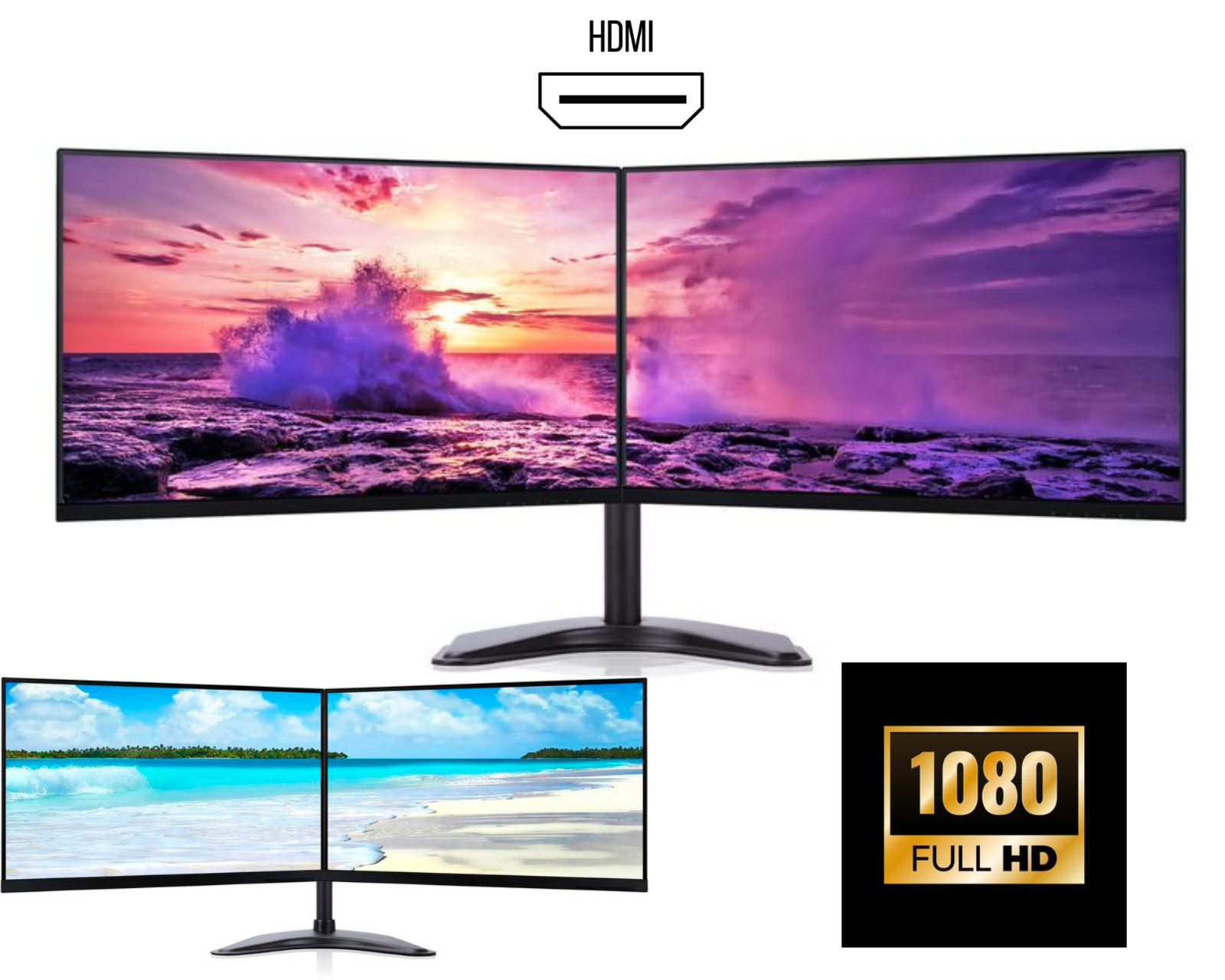
How to Connect Two Monitors to a Laptop (Complete Guide for Dual Monitors)
Using dual monitors with a laptop is one of the easiest ways to boost productivity, whether you work from home, trade stocks, edit videos, or run an online business. Many people think connecting two monitors to a laptop is complicated, but in reality, it’s simple when you use the right setup.
In this guide, you’ll learn:
-
How to connect dual monitors to a laptop
-
What cables or docking stations you need
-
Common problems and solutions
-
Best dual monitors for laptop setups
-
FAQs to help you choose correctly
Why Use Dual Monitors With a Laptop?
Adding dual monitors for a laptop can:
-
Increase productivity by up to 40%
-
Reduce constant window switching
-
Improve multitasking for work, gaming, and design
-
Create a clean and professional workstation
Whether you’re using Windows or macOS, dual monitors with a laptop work seamlessly when configured correctly.
How to Connect Two Monitors to a Laptop (Step-by-Step)
Step 1: Check Your Laptop Ports
Before connecting anything, check which ports your laptop has:
Common ports include:
-
HDMI
-
USB-C (DisplayPort Alt Mode)
-
Thunderbolt 3 / Thunderbolt 4
-
Mini DisplayPort
Step 2: Choose the Right Connection Method
Method 1: HDMI + USB-C / DisplayPort
If your laptop has HDMI + USB-C, you can connect:
-
Monitor 1 → HDMI
-
Monitor 2 → USB-C to HDMI or DisplayPort cable
Method 2: Docking Station (Best & Recommended)
Using a USB-C or Thunderbolt docking station is the best way to run dual monitors with a laptop.
A docking station allows:
-
Two or more monitors
-
Single-cable connection to laptop
-
Charging, USB ports, Ethernet, audio
Popular docks support:
-
Dual Full HD
-
Dual QHD
-
Dual 4K monitors
Docking station is best for business & office use and also it offers you a clean desk setup.
Method 3: USB Display Adapters
USB graphics adapters work but:
-
Use software rendering
-
May lag with videos
-
Not ideal for long-term use
How to Set Up Dual Monitors in Windows or macOS
Windows (10 / 11)
-
Right-click on Desktop → Display Settings
-
Select Extend these displays
-
Arrange monitors visually
-
Set resolution and refresh rate
macOS
-
System Settings → Displays
-
Click Arrangement
-
Uncheck Mirror Displays
-
Drag screens to match layout
Best Dual Monitors for Laptop (What to Look For)
When buying dual monitors for laptop, consider:
✔ Screen size: 24″ or 27″
✔ Resolution: Full HD or QHD
✔ Panel: IPS (better colors & viewing angles)
✔ Ports: HDMI, DisplayPort, USB-C
✔ Adjustable stand (height & tilt)
Business users often prefer matching dual monitors for symmetry and comfort.
Common Problems & Fixes
Laptop Only Detects One Monitor
✔ Update graphics drivers
✔ Check cable type (HDMI version matters)
✔ Use a docking station instead of splitters
Can I Use an HDMI Splitter for Dual Monitors?
❌ No. HDMI splitters mirror, they do not extend displays.
Laptop Lid Closed – Will Dual Monitors Still Work?
✔ Yes. Change power settings to “Do nothing when lid is closed”
Is a Docking Station Worth It?
Absolutely. If you regularly use dual monitors with a laptop, a docking station:
-
Saves time
-
Reduces cable clutter
-
Extends laptop life
-
Supports higher resolutions
Many professionals consider it a must-have accessory.
FAQs – Dual Monitors With Laptop
Can all laptops support dual monitors?
Most modern laptops can. USB-C or Thunderbolt laptops support dual monitors easily. Older laptops may need a docking station.
Can I connect two monitors using only HDMI?
Only if your laptop has two independent HDMI outputs (rare). Otherwise, you need USB-C or a dock.
Do dual monitors affect laptop performance?
Minimal impact for office work. Heavy gaming or 4K editing may require a stronger GPU.
What is the best docking station for dual monitors?
USB-C or Thunderbolt docking stations from trusted brands work best. Choose based on your monitor resolution.
Can I mix different monitor brands?
Yes. Different sizes and brands work, but matching monitors give a better experience.
Final Thoughts
Setting up dual monitors for laptop is one of the smartest upgrades you can make. Whether you use HDMI, USB-C, or a docking station, the right setup transforms your workflow.
If you’re planning to upgrade your workstation, investing in dual monitors with a laptop setup is worth every penny.