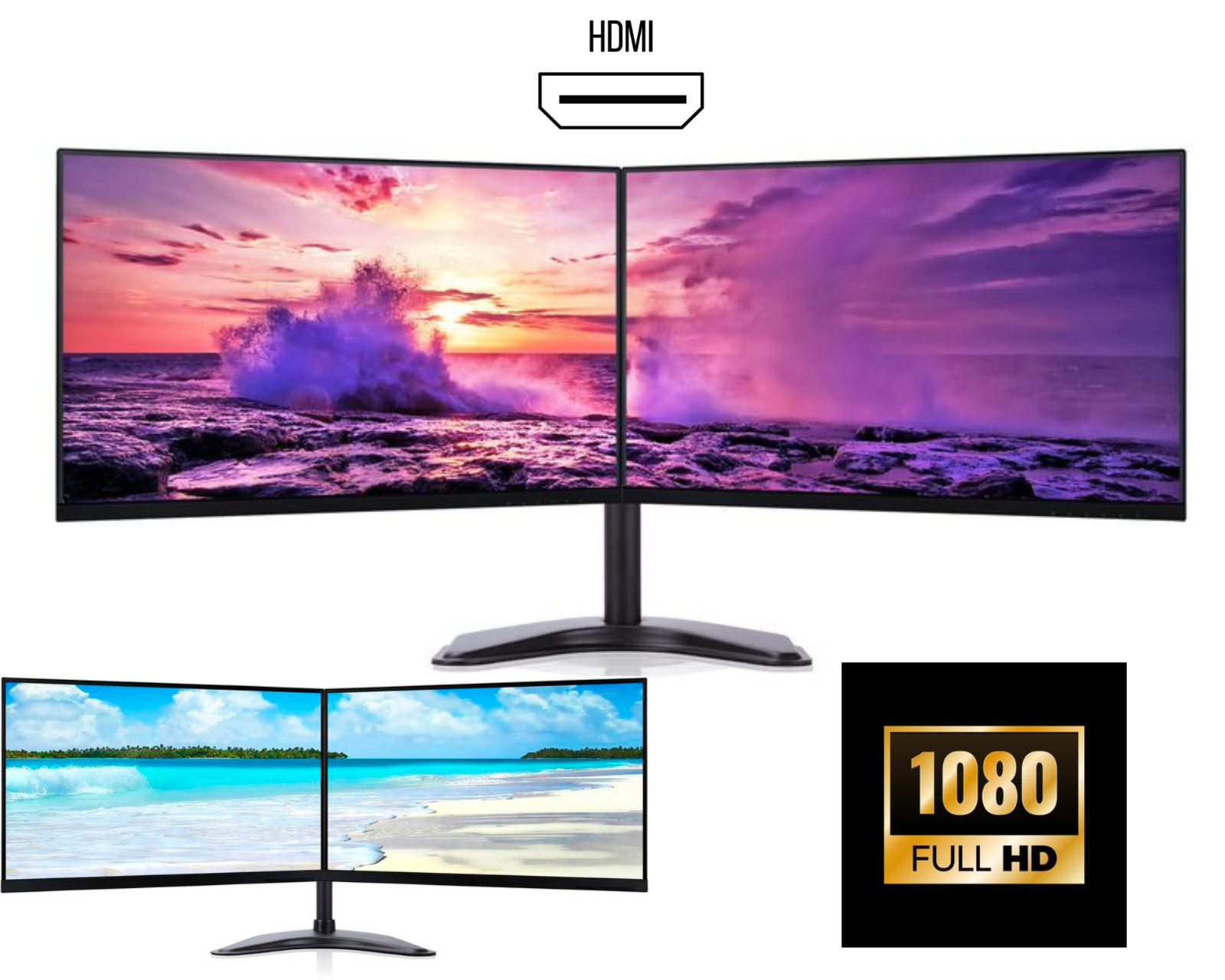
How to Setup Dual Monitors: Complete Guide for Productivity and Workstations (2026)
A dual monitor setup is one of the best ways to improve productivity, multitasking, and workflow efficiency. Whether you are working from home, programming, trading stocks, editing videos, or gaming, using two monitors on one computer can dramatically improve your workspace.
In this guide, you will learn how to setup dual monitors, what equipment you need, and the best tips for building a professional dual monitor workstation.
What Is a Dual Monitor Setup?
A dual monitor setup means connecting two external monitors to one computer or laptop. Instead of working on a single screen, your desktop expands across two displays.
This allows users to open multiple applications simultaneously and create a more efficient dual screen workspace.
Dual monitor setups are widely used by:
• Office professionals
• Programmers and developers
• Stock traders
• Video editors and designers
• Gamers and streamers
• Remote workers and students
Benefits of a Dual Monitor Setup
Increased Productivity
Studies show that using dual monitors can increase productivity by up to 40%. With two screens, you can easily manage documents, emails, spreadsheets, and browsers without constantly switching tabs.
For example:
Monitor 1 – Main work (Excel, coding, editing)
Monitor 2 – Email, research, or communication tools
Better Multitasking
A dual monitor workstation allows you to work on multiple tasks at the same time.
Examples include:
• Writing reports while researching online
• Editing videos with timeline and preview on separate screens
• Coding on one screen and testing output on another
More Screen Space
Using two monitors instead of one gives you a larger workspace, making it easier to manage windows and applications.
This is especially useful for office work, data analysis, and trading setups.
What You Need for a Dual Monitor Setup
Before setting up dual monitors, make sure you have the necessary equipment.
1. Two Computer Monitors
You will need two compatible monitors. Many users prefer frameless or thin bezel monitors to create a clean dual screen setup.
Popular sizes include:
• 24 inch monitors
• 27 inch monitors
2. Computer or Laptop with Multiple Display Outputs
Your computer must support multiple displays.
Common ports include:
• HDMI
• DisplayPort
• USB-C
• VGA (older systems)
Most modern PCs and laptops support dual monitor setups easily.
3. Video Cables
Each monitor requires a cable to connect to your computer.
Common cables include:
• HDMI cable
• DisplayPort cable
• USB-C cable
4. Docking Station (Optional)
If your laptop has limited ports, a USB-C docking station can help connect two or more monitors.
Docking stations are popular in office workstations and professional setups.
How to Setup Dual Monitors (Step-by-Step)
Setting up dual monitors is simple and usually takes only a few minutes.
Step 1: Connect the First Monitor
Connect the first monitor to your computer using HDMI, DisplayPort, or USB-C.
Turn on the monitor and ensure your computer detects it.
Step 2: Connect the Second Monitor
Connect the second monitor using another available display port.
Your computer should automatically detect the second display.
Step 3: Open Display Settings
On Windows:
-
Right-click on the desktop
-
Click Display Settings
You will see both monitors displayed.
Step 4: Choose “Extend Display”
Select Extend these displays. This will expand your desktop across both monitors.
Now you can move windows from one screen to the other.
Step 5: Arrange Monitor Positions
Drag the monitor icons in display settings to match their physical position on your desk.
For example:
Monitor 1 on the left
Monitor 2 on the right
This ensures smooth cursor movement between screens.
Best Desk Setup for Dual Monitors
A proper dual monitor desk setup improves comfort and productivity.
Here are some tips:
• Keep monitors at eye level
• Maintain 50–70 cm distance from screens
• Use a dual monitor stand or monitor arm
• Align screens evenly for comfortable viewing
A clean dual monitor workspace helps reduce neck strain and improves ergonomics.
Dual Monitor Setup for Gaming
A dual monitor gaming setup is commonly used by streamers and competitive gamers.
Typical gaming setup:
Monitor 1 – Main gameplay
Monitor 2 – Chat, streaming software, Discord, or browser
Gamers often prefer:
• 144Hz monitors
• 1ms response time
• Adaptive Sync technology
This allows smooth gameplay while managing streaming tools.
Common Problems with Dual Monitor Setup
Sometimes users face issues when setting up dual monitors.
Common solutions include:
• Updating graphics drivers
• Checking cable connections
• Restarting the computer
• Updating display settings
Most dual monitor issues are easy to fix.
Who Should Use Dual Monitors?
A dual monitor setup is ideal for anyone who needs multiple applications open simultaneously.
Common users include:
• Office workers
• Programmers
• Designers
• Traders
• Students
• Gamers
If you regularly multitask, two monitors can significantly improve your workflow.
Final Thoughts
A dual monitor setup is one of the most effective ways to upgrade your workstation. By expanding your screen space, you can work more efficiently, multitask easily, and create a professional workspace.
Whether you are building a home office, gaming setup, or professional workstation, learning how to setup dual monitors will help you get the most out of your computer.