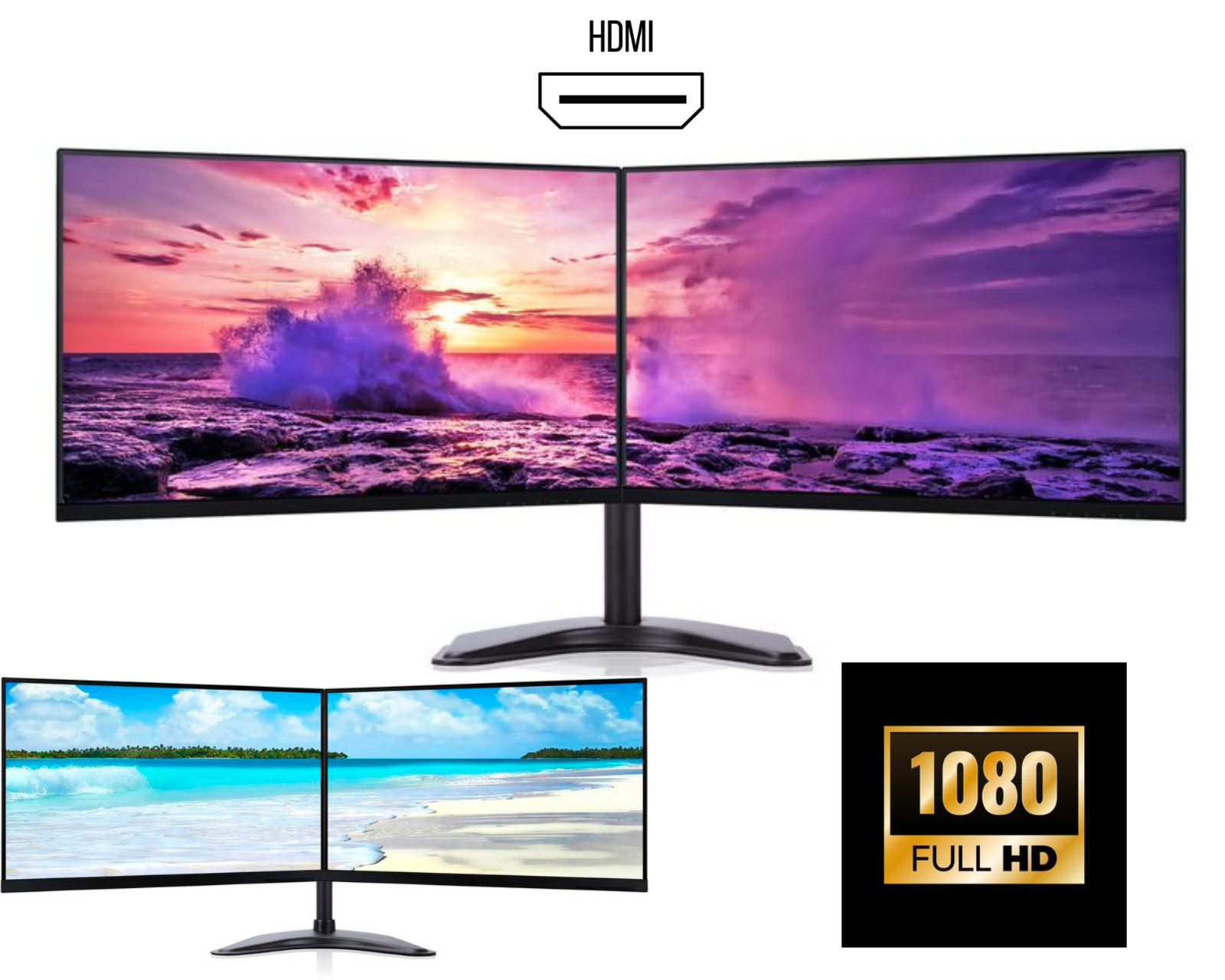
Best Dual Monitor Setup for Productivity, Office Work and Gaming (2026 Guide)
A dual monitor setup is one of the most effective upgrades for improving productivity and multitasking. Whether you work from home, trade stocks, code, design graphics, or play games, using two monitors together can dramatically increase efficiency and comfort.
In this guide, we will explain everything about the best dual monitor setup, including its benefits, how to choose the right dual monitors, and how to build a professional dual screen workstation.
What Is a Dual Monitor Setup?
A dual monitor setup simply means connecting two computer monitors to a single PC or laptop. This allows users to extend their workspace across two screens instead of switching between tabs on one monitor.
Many professionals prefer dual screen setups because they provide more screen space, better workflow, and improved multitasking capabilities.
A dual monitor desk setup is commonly used by:
• Office professionals
• Programmers and developers
• Traders and financial analysts
• Video editors and designers
• Gamers and streamers
• Remote workers and students
Benefits of a Dual Monitor Setup
Increased Productivity
Research shows that dual monitor setups can increase productivity by up to 30–40%. With two screens, you can work on multiple applications simultaneously without constantly minimizing windows.
Example workflow:
Monitor 1 – Main work (Excel, coding, editing)
Monitor 2 – Email, browser, communication tools
This setup saves time and improves workflow efficiency.
Better Multitasking
A dual monitor workstation makes multitasking much easier. Instead of switching tabs, you can dedicate each monitor to a different task.
Examples:
• Writing documents on one screen while researching on another
• Video editing timeline on one monitor and preview window on another
• Coding on one monitor and testing output on the second screen
Improved Focus and Organization
Using two monitors helps organize your workspace. You can keep your main task on one screen and supporting information on the other.
This reduces distractions and improves concentration.
Ideal for Remote Work and Home Offices
Many remote workers prefer dual monitor desk setups because they provide more space for productivity tools like:
• Microsoft Excel
• Google Chrome
• Zoom or Microsoft Teams
• Project management software
A dual monitor home office setup is now considered essential for many professionals.
Best Monitors for Dual Monitor Setup
Choosing the right monitors is important when building a dual screen workstation.
1. Frameless or Thin Bezel Monitors
For a clean and seamless look, choose frameless monitors or thin bezel monitors. These reduce the gap between screens and create a modern dual monitor workspace.
2. Screen Size
Popular sizes for dual monitor setups include:
• 24 inch monitors – best for office productivity
• 27 inch monitors – ideal for creative work and multitasking
• 32 inch monitors – best for design and editing
Most professionals prefer dual 24 inch monitors for everyday work.
3. Resolution
Higher resolution improves clarity and workspace.
Recommended resolutions:
• Full HD (1920x1080) – affordable option
• QHD (2560x1440) – best for productivity
• 4K UHD monitors – ideal for designers and professionals
4. IPS Panel Technology
For better viewing angles and colour accuracy, choose IPS monitors. These are perfect for professional environments and dual monitor office setups.
Benefits of IPS displays:
• Accurate colours
• Wide viewing angles
• Better brightness and contrast
5. Connectivity Options
A good dual monitor setup requires the right connectivity.
Common ports include:
• HDMI
• DisplayPort
• USB-C
Many modern laptops use USB-C docking stations to connect dual external monitors easily.
Dual Monitor Setup for Gaming
A dual monitor gaming setup is also popular among gamers and streamers.
Typical gaming use:
Monitor 1 – Main gameplay
Monitor 2 – Streaming tools, chat, or Discord
Gamers usually prefer:
• 144Hz refresh rate monitors
• 1ms response time
• Adaptive Sync technology
This improves performance and gaming experience.
How to Set Up Dual Monitors
Setting up dual monitors is simple and takes only a few minutes.
Step-by-Step Guide
-
Connect both monitors using HDMI or DisplayPort cables
-
Turn on your computer or laptop
-
Open Display Settings in Windows or macOS
-
Select Extend Display to use both screens
-
Adjust monitor alignment
Once configured, you will have a fully functional dual screen workspace.
Best Desk Setup for Dual Monitors
To create a comfortable dual monitor desk setup, consider the following:
• Use an adjustable monitor stand or dual monitor arm
• Keep monitors at eye level
• Maintain proper distance from screens
• Use cable management for a clean workspace
A well-organized dual monitor workstation improves both productivity and ergonomics.
Who Should Use Dual Monitors?
A dual monitor setup is ideal for:
• Office professionals
• Programmers and developers
• Stock traders
• Video editors
• Designers
• Gamers and streamers
• Students and researchers
Anyone who needs multiple applications open simultaneously will benefit from two monitors instead of one.
Where to Buy Dual Monitor Bundles
Many online stores offer dual monitor bundles that include:
• Matching monitors
• Adjustable stands
• HDMI or DisplayPort cables
• Fully tested displays
Buying a dual monitor bundle saves time and ensures compatibility.
Professionals looking for affordable dual monitor setups for office or home workstations often choose bundles that are ready to install.
Final Thoughts
A dual monitor setup is one of the best ways to increase productivity and improve your workspace. With two screens, you can multitask efficiently, organize your work better, and create a professional workstation.
Whether you are building a home office, trading desk, gaming station, or professional workstation, investing in the best dual monitors can transform your workflow.