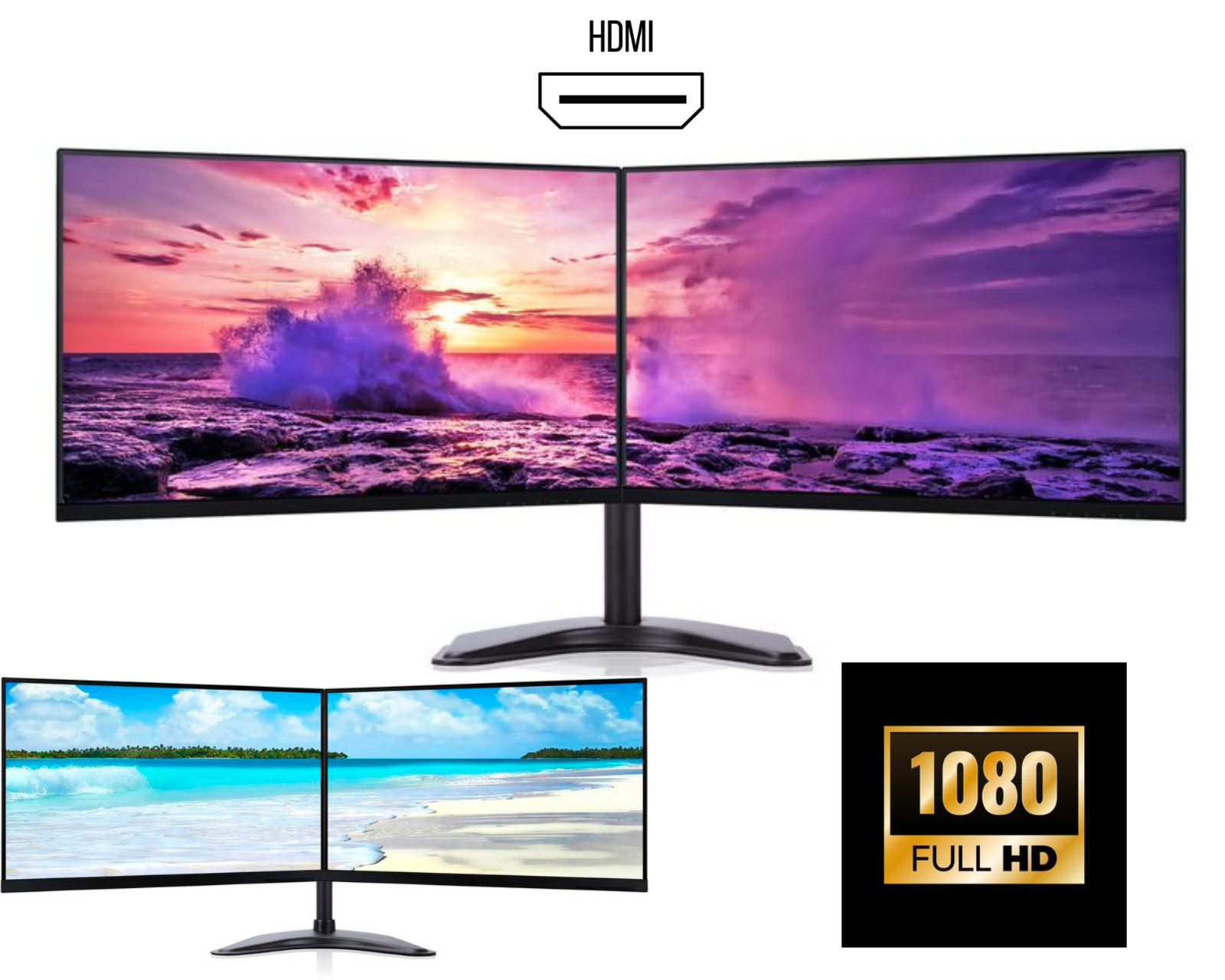
How to Connect Two Monitors to One Computer?
In today’s digital world, productivity is everything. Whether you’re working from home, trading, studying, or running a business, using a dual monitor setup can dramatically improve your efficiency.
If you’re wondering how to connect two monitors to one computer, this complete guide will walk you through everything step by step no technical expertise required.
Why Use a Dual Monitor Setup?
Before we dive into the setup process, let’s understand why dual monitors are becoming essential in 2026.
Key Benefits:
-
Boost productivity by up to 40%
-
Multitask efficiently without switching tabs
-
Improve workflow for work, gaming, and editing
-
Perfect for office work, trading, coding, and studying
A dual monitor setup for productivity allows you to work smarter, not harder.
What You Need to Connect Two Monitors
To connect two monitors to your computer, you’ll need a few basic things:
1. Two Monitors
Preferably matching for a clean setup (e.g., 24-inch dual monitors)
2. A Computer or Laptop
Make sure your system supports multiple displays.
3. Display Cables
Common cable types include:
-
HDMI
-
DisplayPort (DP)
-
VGA (older systems)
-
USB-C (modern laptops)
4. Available Ports
Check your PC or laptop for:
-
Dual HDMI ports
-
HDMI + DisplayPort
-
USB-C with display support
Step-by-Step: How to Connect Two Monitors
Step 1: Check Your Computer Ports
Look at the back of your PC or sides of your laptop. Most modern systems support multiple displays.
Common setups:
-
2x HDMI ports
-
1x HDMI + 1x DisplayPort
-
USB-C + HDMI
Step 2: Connect the First Monitor
-
Plug one end of the cable into your monitor
-
Plug the other end into your computer
Step 3: Connect the Second Monitor
Repeat the same process using a second port.
Step 4: Power On Both Monitors
Turn on your monitors and your computer.
Step 5: Configure Display Settings
On Windows:
-
Right-click on desktop
-
Click Display Settings
-
Scroll to “Multiple Displays”
-
Select Extend these displays
On macOS:
-
Open System Settings
-
Go to Displays
-
Arrange screens as needed
Extend vs Duplicate Displays
When setting up dual monitors, you’ll see two options:
Extend Display (Recommended)
-
Each monitor shows different content
-
Best for productivity
Duplicate Display
-
Both screens show the same thing
-
Useful for presentations
For most users, extended display mode is ideal.
How to Connect Dual Monitors to a Laptop
Many laptops have limited ports, but you still have options:
Option 1: Use HDMI + USB-C
Modern laptops support external displays via USB-C.
Option 2: Use a Docking Station
A docking station allows you to connect:
-
Multiple monitors
-
Keyboard & mouse
-
Ethernet
Option 3: HDMI Splitter (Limited Use)
Note: Splitters duplicate screens, not extend them.
Common Problems & Fixes
Monitor Not Detected
Fix:
-
Go to display settings → click “Detect”
-
Check cable connections
No Signal
Fix:
-
Ensure correct input source (HDMI/DP)
-
Try another cable
Resolution Issues
Fix:
-
Adjust resolution in display settings
Best Setup Tips for Dual Monitors
Use Matching Monitors
Provides better visual consistency
Choose IPS Panels
Better colours and viewing angles
Get a Dual Monitor Stand
Improves ergonomics and saves desk space
Adjust Screen Position
Keep monitors at eye level to avoid strain
Save Money with Refurbished Dual Monitor Bundles
One of the smartest ways to build a dual monitor setup in the UK is by choosing refurbished bundles.
Benefits:
-
Affordable pricing
-
Professionally tested
-
Same performance as new
-
Eco-friendly choice
Many users now prefer refurbished dual monitor setups to get premium quality without overspending.
Final Thoughts
Setting up a dual monitor system is one of the easiest and most effective ways to upgrade your workspace. Whether you're a student, professional, or business owner, learning how to connect two monitors to one computer can completely transform your productivity.
With the right cables, ports, and setup, you can create a powerful workstation in minutes.
Ready to Upgrade Your Setup?
If you’re looking for an affordable and reliable solution, consider investing in a ready-made dual monitor bundle. It saves time, ensures compatibility, and gives you everything you need in one package.